> ## Documentation Index
> Fetch the complete documentation index at: https://docs.reown.com/llms.txt
> Use this file to discover all available pages before exploring further.
# Deposit with Exchange - Flutter
If you're looking to enable crypto payments in your online or in-person business, check out WalletConnect Pay, our all-in-one payments solution. [Learn more in the WalletConnect Pay docs →](https://docs.walletconnect.com/payments/overview)
**Deposit from Exchange** gives your users a seamless way to fund their connected wallets directly from centralized exchange accounts like Binance. Instead of forcing users to leave your app, log into their exchange, and manually handle withdrawals, you can offer a guided in-app flow that keeps them engaged and ready to transact.
The feature now supports automatic swapping and bridging of tokens when needed during deposits, allowing users to deposit from any supported asset on their exchange and receive the desired token on the target network.
## Quickstart
This feature will start working as soon as your team is on the allowed-list. Contact us [via our form here](https://share.hsforms.com/1_oWa8QkwRXi6oR0nZ_SIxQnxw6s) to get started.
## Usage Options
There are two ways to use **Deposit from Exchange**:
### 1. Built-in within AppKit (No extra code required)
After enabling the feature, it's automatically available within the AppKit modal. Users can access it by:
1. Connecting their wallet through AppKit
2. Opening the **Account Screen**
3. Clicking on the **"Fund wallet"** button
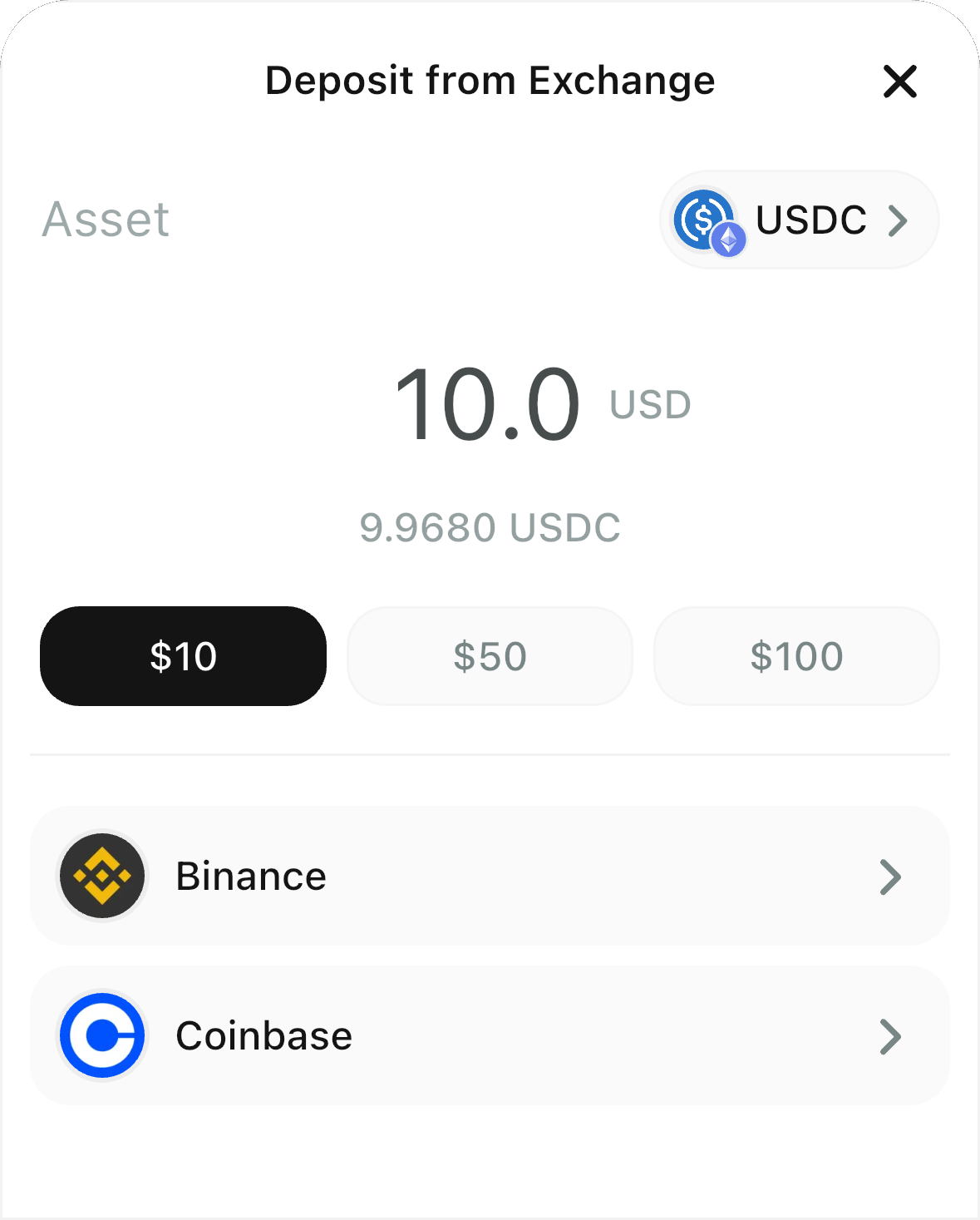
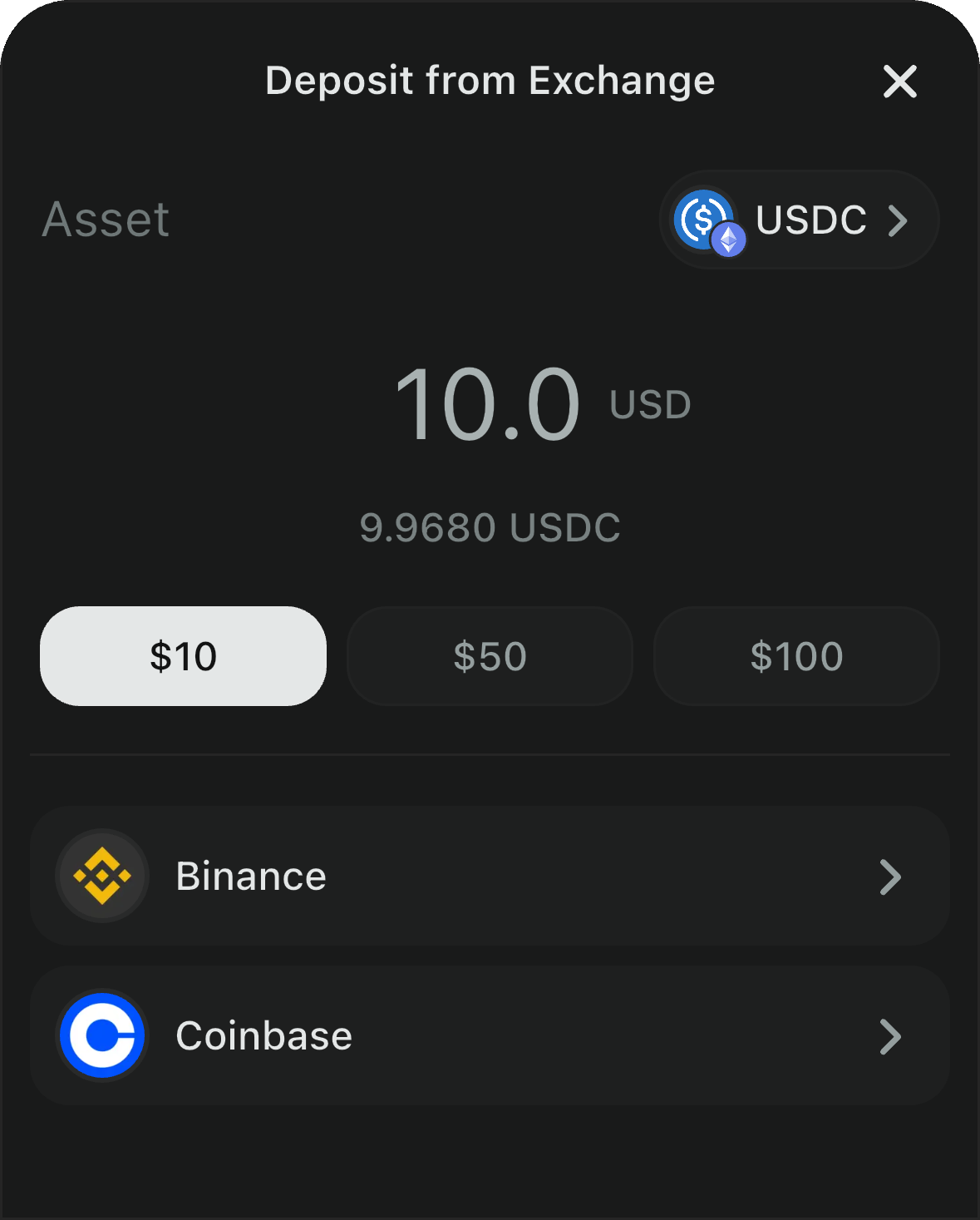
The deposit flow will be shown:
 ### 2. Stand-alone feature (Programmatic control)
If you want more control over when and how the deposit flow is triggered, you can use it as a stand-alone feature. This allows you to:
* Open the deposit screen from anywhere in your app
* Pre-configure assets, recipients, and other options
* Listen to deposit success events
Use the following helpers:
* Get available payment assets based on the network:
```dart theme={null}
final List assets = _appKitModal.getPaymentAssetsForNetwork(
chainId: 'eip155:1',
includeNative: false,
includeTest: true,
);
```
***includeNative:*** will include or exclude native tokens, such as ETH on Ethereum or SOL on Solana. These are included by default.
### 2. Stand-alone feature (Programmatic control)
If you want more control over when and how the deposit flow is triggered, you can use it as a stand-alone feature. This allows you to:
* Open the deposit screen from anywhere in your app
* Pre-configure assets, recipients, and other options
* Listen to deposit success events
Use the following helpers:
* Get available payment assets based on the network:
```dart theme={null}
final List assets = _appKitModal.getPaymentAssetsForNetwork(
chainId: 'eip155:1',
includeNative: false,
includeTest: true,
);
```
***includeNative:*** will include or exclude native tokens, such as ETH on Ethereum or SOL on Solana. These are included by default.
***includeTest:*** will include or exclude testnet assets (e.g., Sepolia, Base Sepolia). These are included by default.
* Configure the feature (if desired):
```dart theme={null}
_appKitModal.configDeposit(
supportedAssets: assets,
configuredRecipients: {
'eip155': '0xYourEVMAddress',
'solana': 'YourSolanaAddress',
},
filterByNetwork: true,
depositAssetButton: true,
showNetworkIcon: false,
preselectedAsset: solanaUSDC, // Optional: locks to a specific asset
);
```
| Parameter | Type | Default | Description |
| ---------------------- | ---------------------- | ------------------- | ------------------------------------------------------------------------------------------------------------------------------------------------------------------------------------------------------------------------------------- |
| `supportedAssets` | `List?` | `allExchangeAssets` | List of assets available for deposit. If not provided, all supported assets are available. |
| `configuredRecipients` | `Map` | `{}` | Map of namespace to recipient address (e.g., `{'eip155': '0x...', 'solana': '...'}`). If provided, funds will be sent to these addresses instead of the connected wallet. If not set and no wallet is connected, an error will occur. |
| `filterByNetwork` | `bool?` | `true` | When `true`, filters available assets by the currently selected network. |
| `depositAssetButton` | `bool?` | `true` | Controls visibility of the asset selection button. **Note:** If `preselectedAsset` is not set, this is always forced to `true`. |
| `showNetworkIcon` | `bool?` | `true` | Shows or hides the chain icon on asset options. |
| `preselectedAsset` | `ExchangeAsset?` | `null` | If provided, locks the feature to this specific asset and disables the Asset Selector. The asset's network must be a valid CAIP-2 chain ID and must be registered in `ReownAppKitModalNetworks`. |
When using `preselectedAsset`, the asset's network must be registered in `ReownAppKitModalNetworks`. If using a custom network, add it first using `ReownAppKitModalNetworks.addSupportedNetworks()`. See [Custom Chains](/appkit/flutter/core/custom-chains) for details.
* Open the modal on Deposit Screen:
```dart theme={null}
// Unmodified
_appKitModal.openDepositView();
// With different screen title
await _appKitModal.openModalView(
ReownAppKitModalDepositScreen(
titleOverride: 'Your own title',
),
);
```
* Listen to deposit success events:
```dart theme={null}
void _onDepositSuccess(DepositSuccessEvent event) {
debugPrint('Deposit successful from exchange: ${event.exchange.name}');
// event.exchange contains: id, imageUrl, name
}
// Subscribe to the event
_appKitModal.onDepositSuccess.subscribe(_onDepositSuccess);
// Don't forget to unsubscribe when done
_appKitModal.onDepositSuccess.unsubscribe(_onDepositSuccess);
```
***
### As a standalone option you can also use this feature in a headless (no UI) version
### Instance creation
Create a `ReownAppKit` instance and initialize it (as with any other AppKit usage).
```dart theme={null}
final appKit = ReownAppKit(
core: ReownCore(
projectId: '876c62..........', // Project ID retrieved from Reown Dashboard
),
metadata: PairingMetadata(
name: 'Example',
description: 'Deposit With Exchange Example',
url: 'https://example.com/',
icons: [
'https://example.com/icon.png',
],
redirect: Redirect(native: 'exampleapp://'),
),
);
```
### Initialize the SDK
After creating the instance, initialize it.
```dart theme={null}
// unawaited
appKit.init().then((_) => setState(() {}));
// awaited
await appKit.init();
```
### Supported Assets
Currently the feature works with a set of supported assets. You can use the following function to filter them according to your needs.
```dart theme={null}
// Get supported assets on the given chainId (CAIP-2)
// Null value will return all supported assets in all networks
final List assets = appKit.getPaymentAssetsForNetwork(
chainId: 'eip155:1',
includeNative: true, // Include native tokens (ETH, SOL). Default: true
includeTest: true, // Include testnet assets. Default: true
);
```
Or you can pick any of the preconfigured constants by looking at their definitions:
```dart theme={null}
const ethereumETH = ExchangeAsset(
network: 'eip155:1',
address: 'native',
metadata: AssetMetadata(name: 'Ethereum', symbol: 'ETH', decimals: 18),
);
const ethereumUSDC = ExchangeAsset(
network: 'eip155:1',
address: '0xA0b86991c6218b36c1d19D4a2e9Eb0cE3606eB48',
metadata: AssetMetadata(name: 'USD Coin', symbol: 'USDC', decimals: 6),
);
const ethereumUSDT = ExchangeAsset(
network: 'eip155:1',
address: '0xdAC17F958D2ee523a2206206994597C13D831ec7',
metadata: AssetMetadata(name: 'Tether USD', symbol: 'USDT', decimals: 6),
);
const optimismUSDT = ExchangeAsset(
network: 'eip155:10',
address: '0x94b008aA00579c1307B0EF2c499aD98a8ce58e58',
metadata: AssetMetadata(name: 'Tether USD', symbol: 'USDT', decimals: 6),
);
const polygonUSDC = ExchangeAsset(
network: 'eip155:137',
address: '0x2791bca1f2de4661ed88a30c99a7a9449aa84174',
metadata: AssetMetadata(name: 'USD Coin', symbol: 'USDC', decimals: 6),
);
const polygonUSDT = ExchangeAsset(
network: 'eip155:137',
address: '0xc2132d05d31c914a87c6611c10748aeb04b58e8f',
metadata: AssetMetadata(name: 'Tether USD', symbol: 'USDT', decimals: 6),
);
const baseETH = ExchangeAsset(
network: 'eip155:8453',
address: 'native',
metadata: AssetMetadata(name: 'Ethereum', symbol: 'ETH', decimals: 18),
);
const baseUSDC = ExchangeAsset(
network: 'eip155:8453',
address: '0x833589fcd6edb6e08f4c7c32d4f71b54bda02913',
metadata: AssetMetadata(name: 'USD Coin', symbol: 'USDC', decimals: 6),
);
const arbitrumUSDC = ExchangeAsset(
network: 'eip155:42161',
address: '0xaf88d065e77c8cC2239327C5EDb3A432268e5831',
metadata: AssetMetadata(name: 'USD Coin', symbol: 'USDC', decimals: 6),
);
const arbitrumUSDT = ExchangeAsset(
network: 'eip155:42161',
address: '0xFd086bC7CD5C481DCC9C85ebE478A1C0b69FCbb9',
metadata: AssetMetadata(name: 'Tether USD', symbol: 'USDT', decimals: 6),
);
const baseSepoliaETH = ExchangeAsset(
network: 'eip155:84532',
address: 'native',
metadata: AssetMetadata(name: 'Ethereum', symbol: 'ETH', decimals: 18),
);
const baseSepoliaUSDC = ExchangeAsset(
network: 'eip155:84532',
address: '0x036CbD53842c5426634e7929541eC2318f3dCF7e',
metadata: AssetMetadata(name: 'USD Coin', symbol: 'USDC', decimals: 6),
);
const sepoliaETH = ExchangeAsset(
network: 'eip155:11155111',
address: 'native',
metadata: AssetMetadata(name: 'Ethereum', symbol: 'ETH', decimals: 18),
);
const solanaSOL = ExchangeAsset(
network: 'solana:5eykt4UsFv8P8NJdTREpY1vzqKqZKvdp',
address: 'native',
metadata: AssetMetadata(name: 'Solana', symbol: 'SOL', decimals: 9),
);
const solanaUSDC = ExchangeAsset(
network: 'solana:5eykt4UsFv8P8NJdTREpY1vzqKqZKvdp',
address: 'EPjFWdd5AufqSSqeM2qN1xzybapC8G4wEGGkZwyTDt1v',
metadata: AssetMetadata(name: 'USD Coin', symbol: 'USDC', decimals: 6),
);
const solanaUSDT = ExchangeAsset(
network: 'solana:5eykt4UsFv8P8NJdTREpY1vzqKqZKvdp',
address: 'Es9vMFrzaCERmJfrF4H2FYD4KCoNkY11McCe8BenwNYB',
metadata: AssetMetadata(name: 'Tether USD', symbol: 'USDT', decimals: 6),
);
const List allExchangeAssets = [
ethereumETH,
ethereumUSDC,
ethereumUSDT,
optimismUSDT,
polygonUSDC,
polygonUSDT,
baseETH,
baseUSDC,
arbitrumUSDC,
arbitrumUSDT,
baseSepoliaETH,
baseSepoliaUSDC,
sepoliaETH,
solanaSOL,
solanaUSDC,
solanaUSDT,
];
```
### Get Supported Exchanges
Whether you previously selected a supported `asset` or not, the next step is to get all the supported exchanges. If `asset` is provided, the response will include only the exchanges supporting that particular asset.
```dart theme={null}
final params = GetExchangesParams(page: 1, asset: asset);
final GetExchangesResult result = await appKit.getExchanges(params: params);
// result.exchanges;
// result.total;
```
`GetExchangesParams` also accepts `includeOnly` and `exclude` parameters to filter the `getExchanges` response. Example:
```dart theme={null}
// Include only specific exchanges
final params = GetExchangesParams(
page: 1,
asset: asset,
includeOnly: ['binance'],
);
final GetExchangesResult result = await appKit.getExchanges(params: params);
// result.exchanges will only contain Binance;
// result.total = 1;
// Exclude specific exchanges
final paramsWithExclude = GetExchangesParams(
page: 1,
asset: asset,
exclude: ['binance'],
);
final GetExchangesResult resultExcluded = await appKit.getExchanges(params: paramsWithExclude);
// result.exchanges will contain all exchanges except Binance;
```
`GetExchangesResult` contains a list of exchanges (`List`) and the total number of them.
### Payment URL
After the user selects the Exchange to fund their wallet from, it's time to get the payment (funding) redirect URL with params:
* Selected `Exchange` ⇒ id
* Selected `ExchangeAsset`
* Amount to fund
* Your wallet address in CAIP-10
```dart theme={null}
final params = GetExchangeUrlParams(
exchangeId: exchange.id,
asset: asset,
amount: '1.0',
recipient: '${asset.network}:$yourWalletAddress',
);
final GetExchangeUrlResult result = await appKit.getExchangeUrl(
params: params,
);
// result.sessionId;
// result.url;
```
The result will contain a `sessionId` (relevant later to check the status of the transaction/funding) and the payment URL.
At this point, your dApp will launch this URL on the user's device, and the Exchange App will be launched if installed; otherwise, their default browser will open to log into the exchange and fund.
### Status Check
Once the user completes the transaction on the Exchange side, they should return to your dApp and wait for the confirmation status.
> The recommended approach here is that, right after the user launches the payment URL, your dApp starts to query the confirmation status in a loop with a 3-second delay between each request, until a terminal status is received (or your own timeout logic is triggered). The SDK uses a maximum of 30 polling attempts by default.
```dart theme={null}
final params = GetExchangeDepositStatusParams(
exchangeId: exchange.id,
sessionId: sessionId,
);
final GetExchangeDepositStatusResult result = await appKit.getExchangeDepositStatus(
params: params
);
// result.status
// result.txHash
```
Possible values of `status` are: **UNKNOWN**, **IN\_PROGRESS**, **CONFIRMED**, **FAILED**
* **UNKNOWN:** Transaction has not been submitted yet
* **IN\_PROGRESS:** Transaction submitted, checking confirmation
* **CONFIRMED:** Transaction confirmed, payment successful, `txHash` will be provided along with this status
* **FAILED:** Transaction failed