> ## Documentation Index
> Fetch the complete documentation index at: https://docs.reown.com/llms.txt
> Use this file to discover all available pages before exploring further.
# Dashboard Configuration Settings
The Reown Dashboard's configuration page allows you to manage your project's settings and enabled features.
## Feature Toggles
Feature toggles allow you to turn specific features on and off. There are several feature toggles split into 4 categories:
* [Accounts & Authentication](#accounts-&-authentication)
* [Payments, Deposits & Swaps](#payments-deposits-&-swaps)
* [Tracking](#tracking)
* [Customization](#customization)
### Accounts & Authentication
#### Social & Email Logins
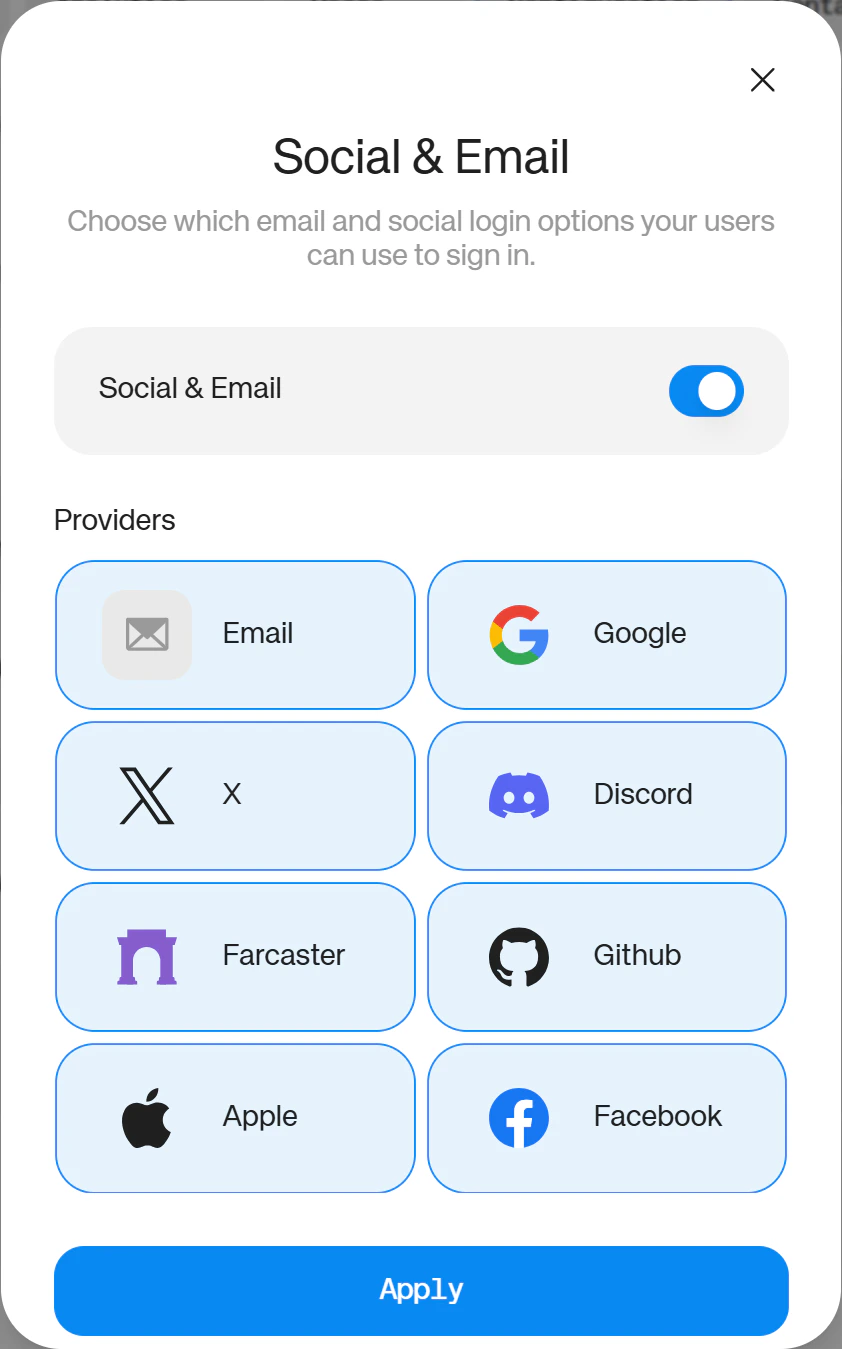
Enable non-crypto [logins via social accounts or email](/appkit/authentication/socials), including email, Google, X, Discord, Farcaster, Github, Apple & Facebook. Flip the toggle on, choose as many or as few as you like and press "Apply" to register your changes.
 #### Reown Authentication
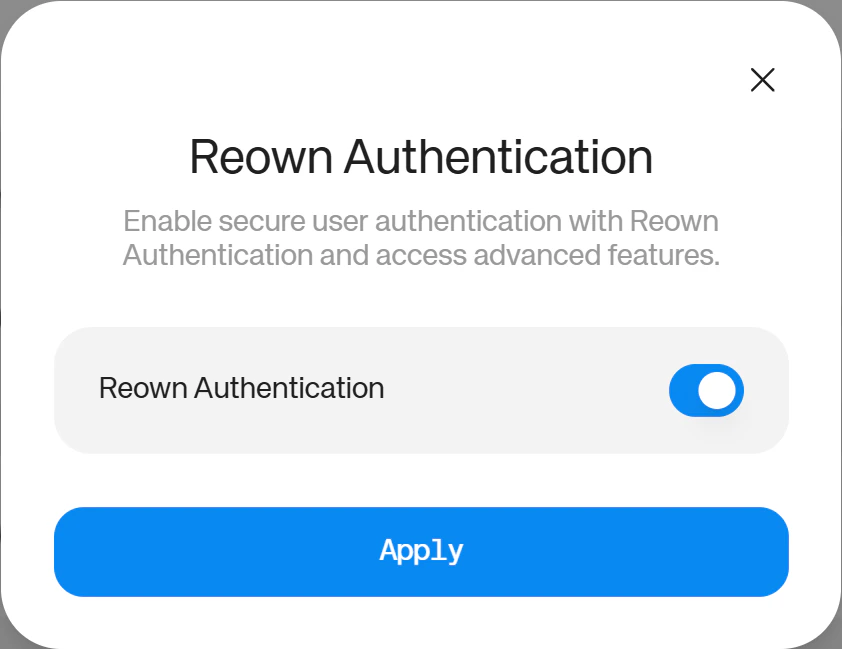
Enable authentication via Sign in with Ethereum ([SIWE](/appkit/authentication/one-click-auth)) or multichain auth ([SIWX](/appkit/authentication/siwx/default)) so you can allow logins with 500+ crypto wallets via the WalletConnect network. Flip the toggle on and press "Apply" to register your changes.
#### Reown Authentication
Enable authentication via Sign in with Ethereum ([SIWE](/appkit/authentication/one-click-auth)) or multichain auth ([SIWX](/appkit/authentication/siwx/default)) so you can allow logins with 500+ crypto wallets via the WalletConnect network. Flip the toggle on and press "Apply" to register your changes.
 #### Multi Wallet
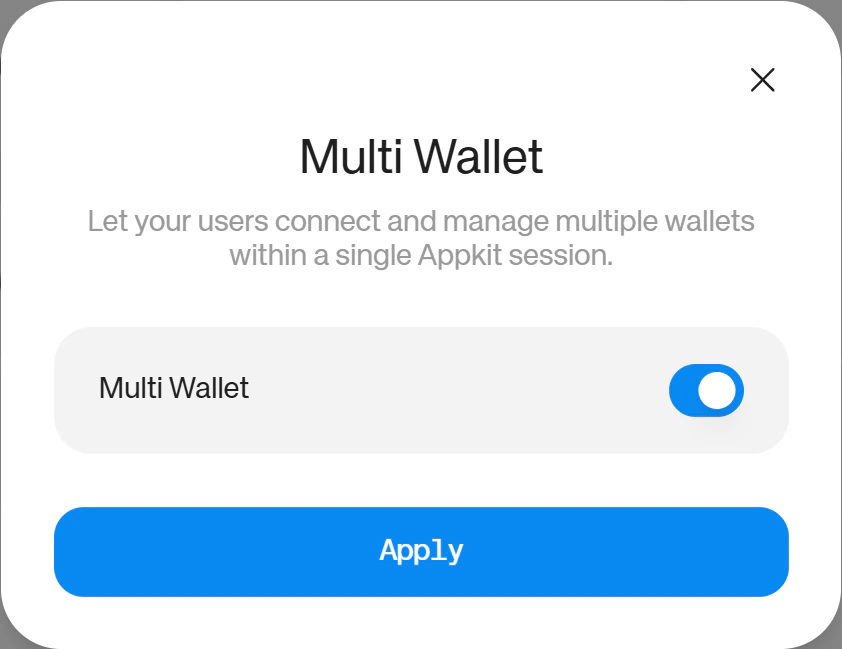
Turn on [Multi Wallet Linking](/appkit/features/multiwallet-linking) to allow your users to connect multiple wallets to your app in a single session. Flip on the toggle and press "Apply" to register the changes.
#### Multi Wallet
Turn on [Multi Wallet Linking](/appkit/features/multiwallet-linking) to allow your users to connect multiple wallets to your app in a single session. Flip on the toggle and press "Apply" to register the changes.
 ### Payments, Deposits & Swaps
#### Onramp
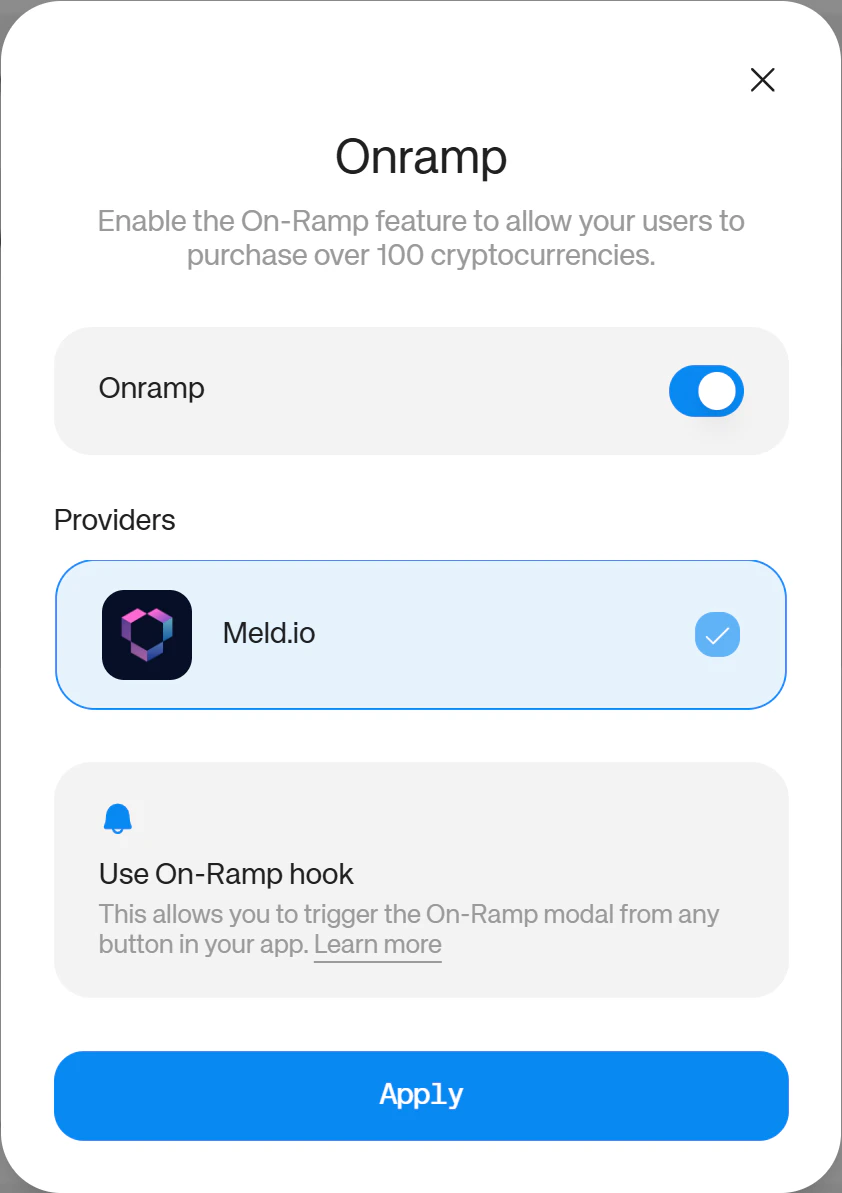
Turn on the [onramp feature](/appkit/features/onramp) to allow your users to buy crypto with fiat currencies (such as Dollars or Euros) directly in app. Flip the toggle on, choose your provider, and press "Apply" to register the changes.
### Payments, Deposits & Swaps
#### Onramp
Turn on the [onramp feature](/appkit/features/onramp) to allow your users to buy crypto with fiat currencies (such as Dollars or Euros) directly in app. Flip the toggle on, choose your provider, and press "Apply" to register the changes.
 #### Swaps
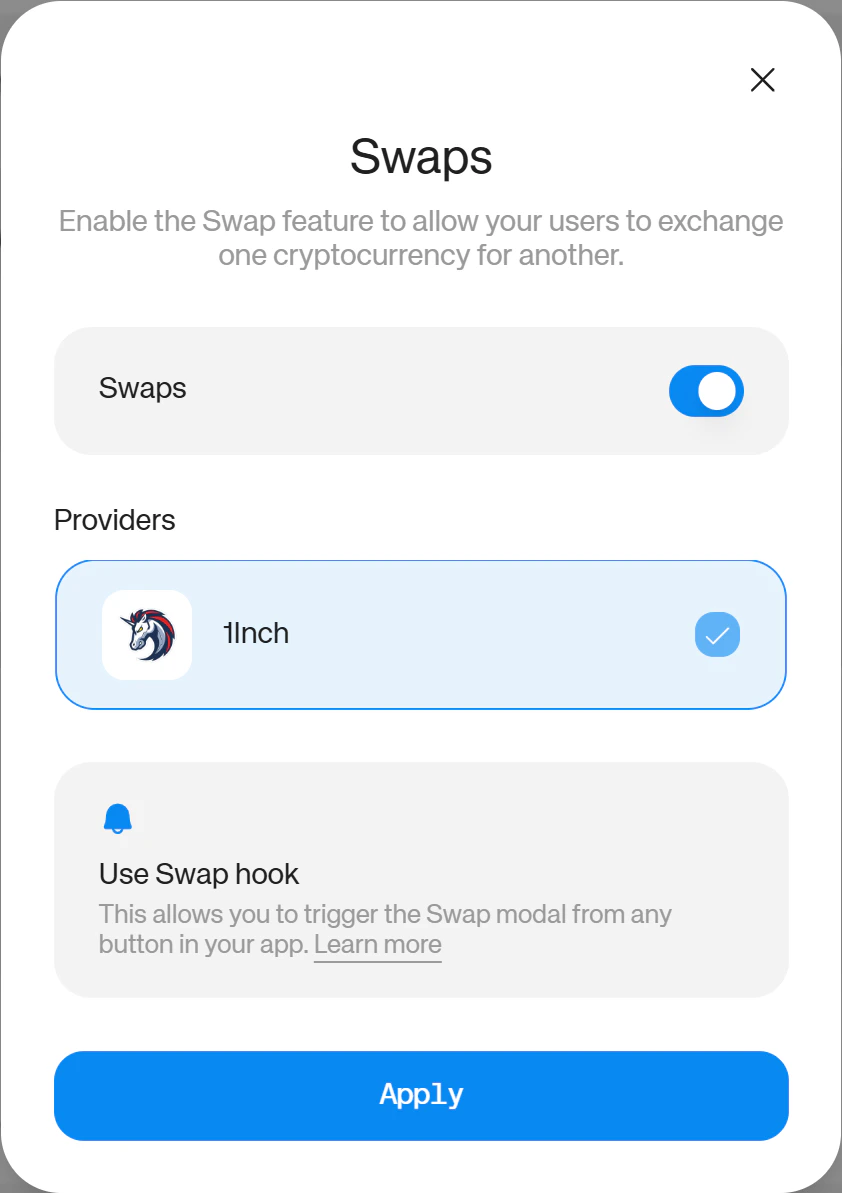
Turn on the [swap feature](/appkit/features/swaps) to allow your users to make crypto to crypto swaps (such as ETH to POL) directly in app. Flip the toggle on, choose your provider, and press "Apply" to register the changes.
#### Swaps
Turn on the [swap feature](/appkit/features/swaps) to allow your users to make crypto to crypto swaps (such as ETH to POL) directly in app. Flip the toggle on, choose your provider, and press "Apply" to register the changes.
 #### Deposit with Exchange
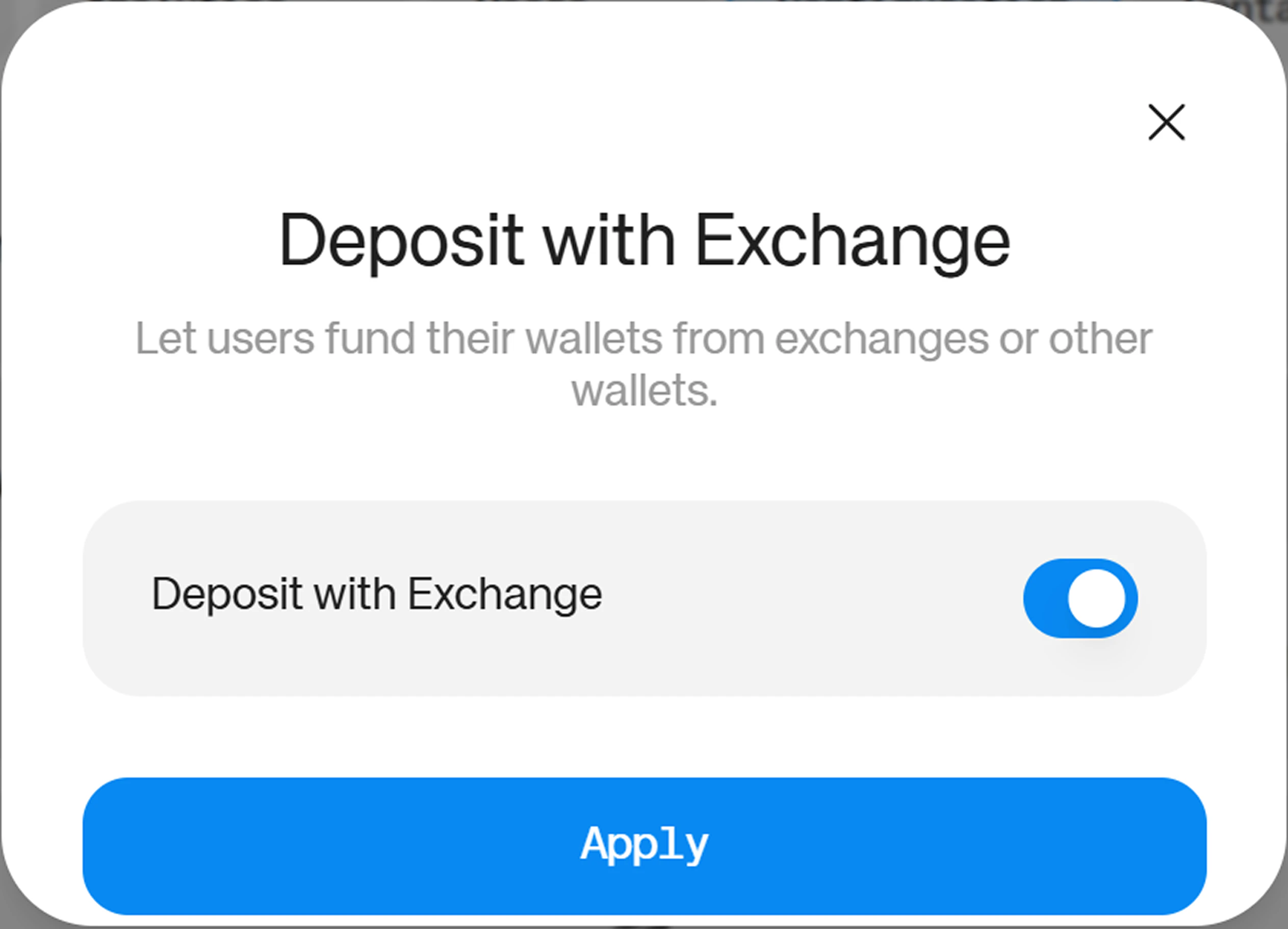
Turn on the [Deposit with Exchange](/appkit/payments/deposit-with-exchange) toggle to enable in-app wallet top-ups via exchange wallets. Flip the toggle on and press "Apply" to register your changes.
#### Deposit with Exchange
Turn on the [Deposit with Exchange](/appkit/payments/deposit-with-exchange) toggle to enable in-app wallet top-ups via exchange wallets. Flip the toggle on and press "Apply" to register your changes.
 #### Payments
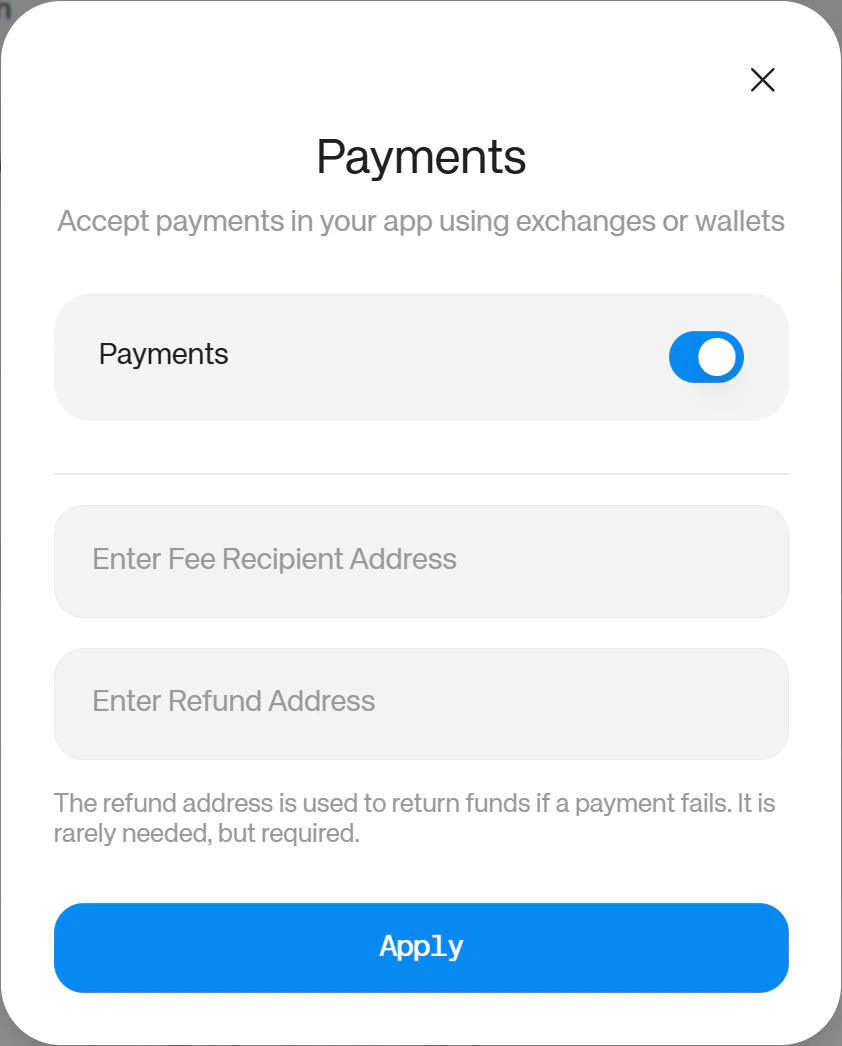
Accept payments in your app, either from exchanges or wallets with the Payments toggle. This allows you to set a fee recipient address, which is the wallet address you'd like to receive funds raised from transaction fees, and a refund address, which is used to return funds if a payment fails. To enable it, turn the toggle on, enter a Fee recipient address and a refund address, then click "Apply" to register your changes.
#### Payments
Accept payments in your app, either from exchanges or wallets with the Payments toggle. This allows you to set a fee recipient address, which is the wallet address you'd like to receive funds raised from transaction fees, and a refund address, which is used to return funds if a payment fails. To enable it, turn the toggle on, enter a Fee recipient address and a refund address, then click "Apply" to register your changes.
 ### Tracking
#### Event Tracking
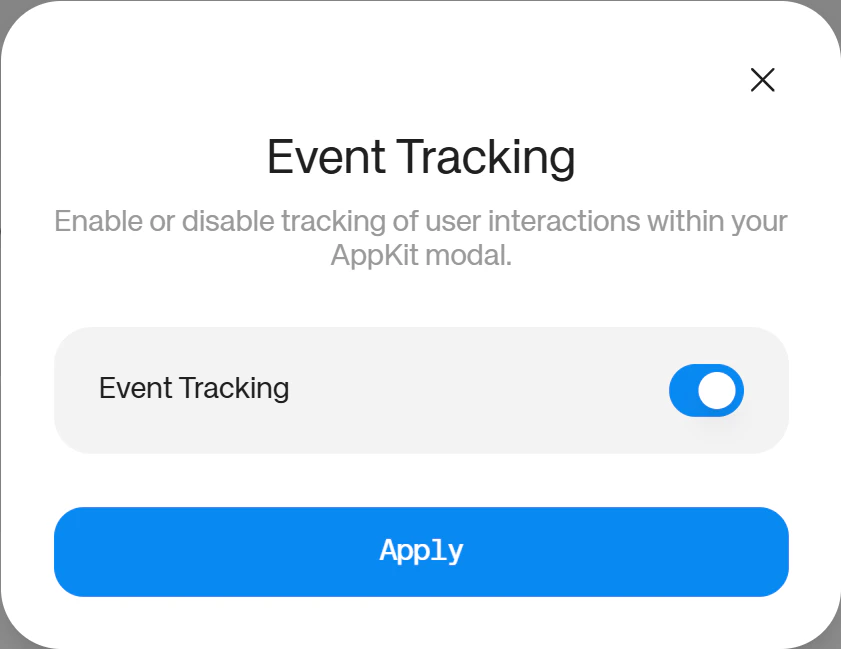
Event tracking allows you to track user interactions inside the connect wallet modal. This includes data such as wallet providers, wallet addresses and more, which will be surfaced in your [Reown Dashboard's Analytics](/cloud/analytics) tab. Turn on the toggle and press "Apply" to register your changes.
### Tracking
#### Event Tracking
Event tracking allows you to track user interactions inside the connect wallet modal. This includes data such as wallet providers, wallet addresses and more, which will be surfaced in your [Reown Dashboard's Analytics](/cloud/analytics) tab. Turn on the toggle and press "Apply" to register your changes.
 #### Activity
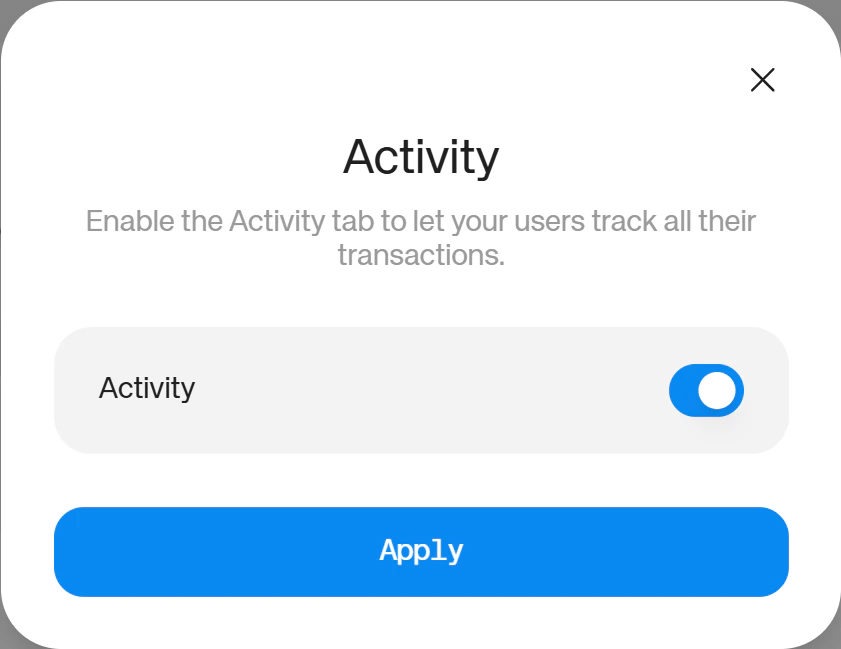
The activity toggle allows your users to see the history of their own transactions within your app. Turn on the toggle and press "Apply" to register your changes.
#### Activity
The activity toggle allows your users to see the history of their own transactions within your app. Turn on the toggle and press "Apply" to register your changes.
 ### Customization
#### Headless
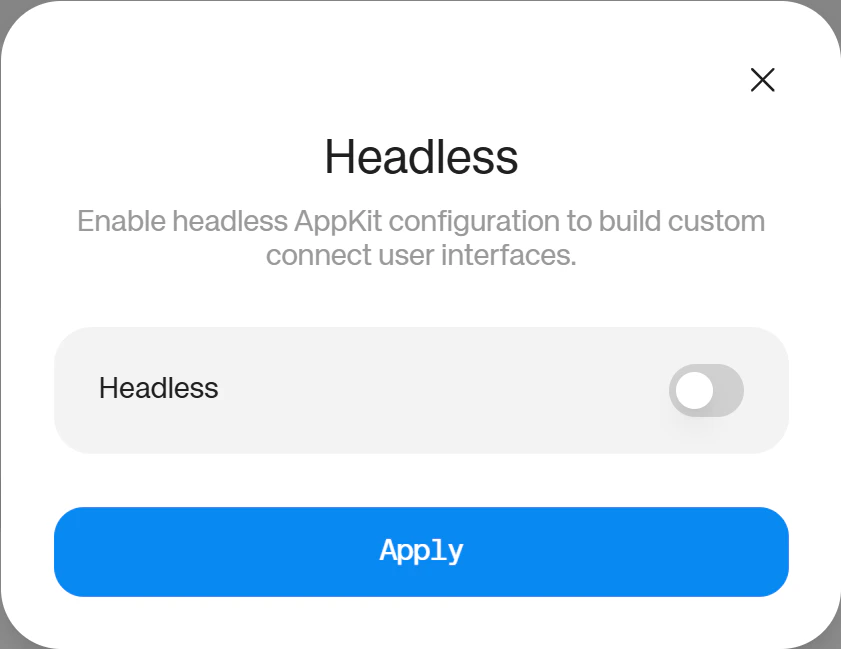
Enable Headless to completely customize the connect wallet modal instead of using Reown's pre-built UI. Turn on the toggle and press "Apply" to register your changes.
### Customization
#### Headless
Enable Headless to completely customize the connect wallet modal instead of using Reown's pre-built UI. Turn on the toggle and press "Apply" to register your changes.
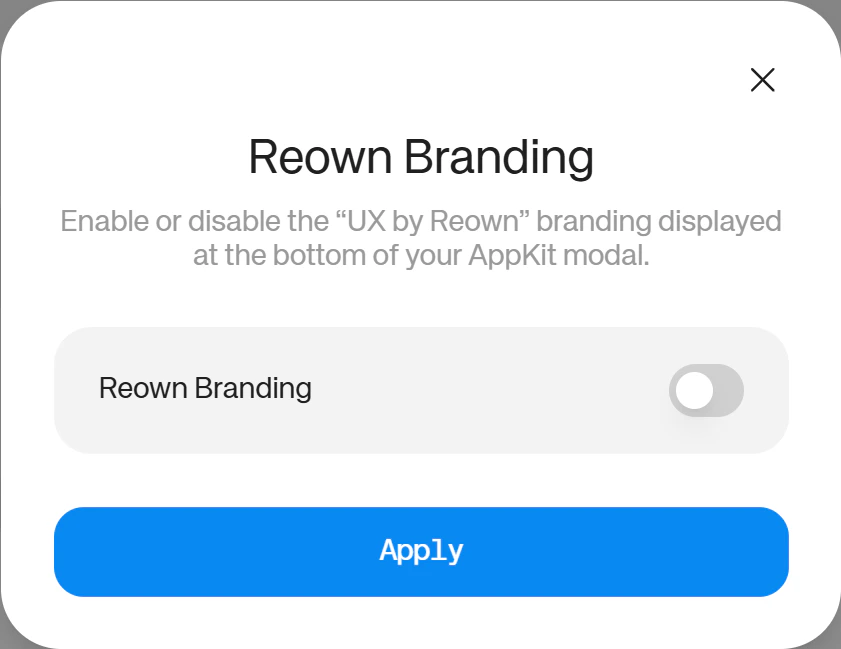
 #### Remove Reown Branding
Remove Reown Branding toggle allows you to disable the "UX by Reown" text displayed at the bottom of your modal. Turn on the toggle and press "Apply" to register your changes.
#### Remove Reown Branding
Remove Reown Branding toggle allows you to disable the "UX by Reown" text displayed at the bottom of your modal. Turn on the toggle and press "Apply" to register your changes.
 ## Other Configuration Settings
### Domain Verification
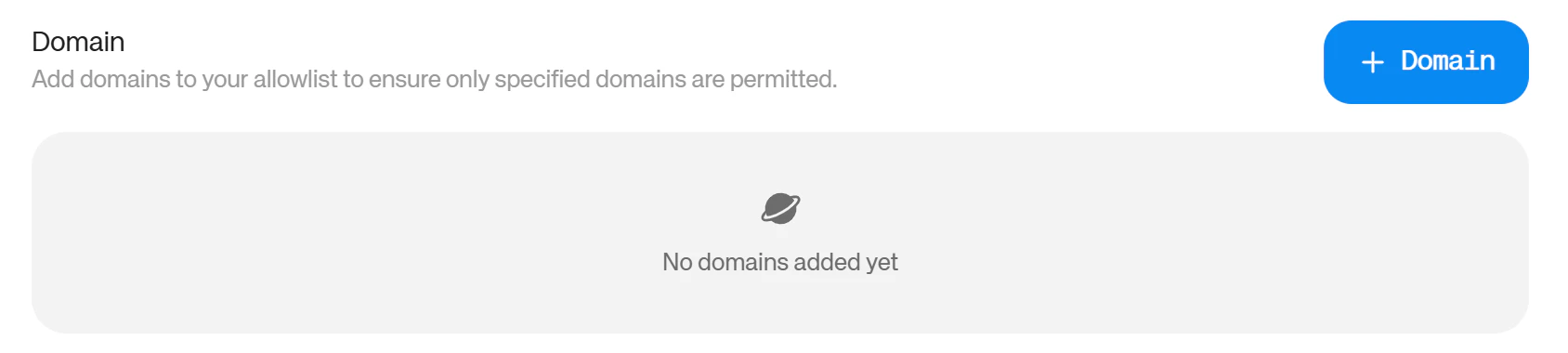
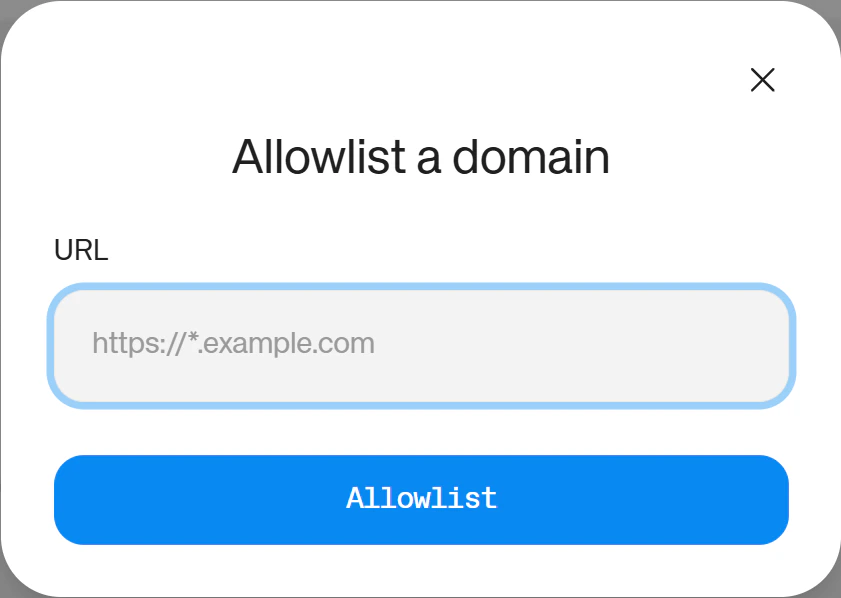
Domain verification lets you link your domain to your Reown project to ensure only your domain can access your project. To turn it on, scroll to the bottom half of the configuration page to find the "Domain" heading, then click the blue "+ Domain" button, type in or copy paste your domain in the input field and click "Allowlist" to register your changes.
## Other Configuration Settings
### Domain Verification
Domain verification lets you link your domain to your Reown project to ensure only your domain can access your project. To turn it on, scroll to the bottom half of the configuration page to find the "Domain" heading, then click the blue "+ Domain" button, type in or copy paste your domain in the input field and click "Allowlist" to register your changes.
 ### App ID
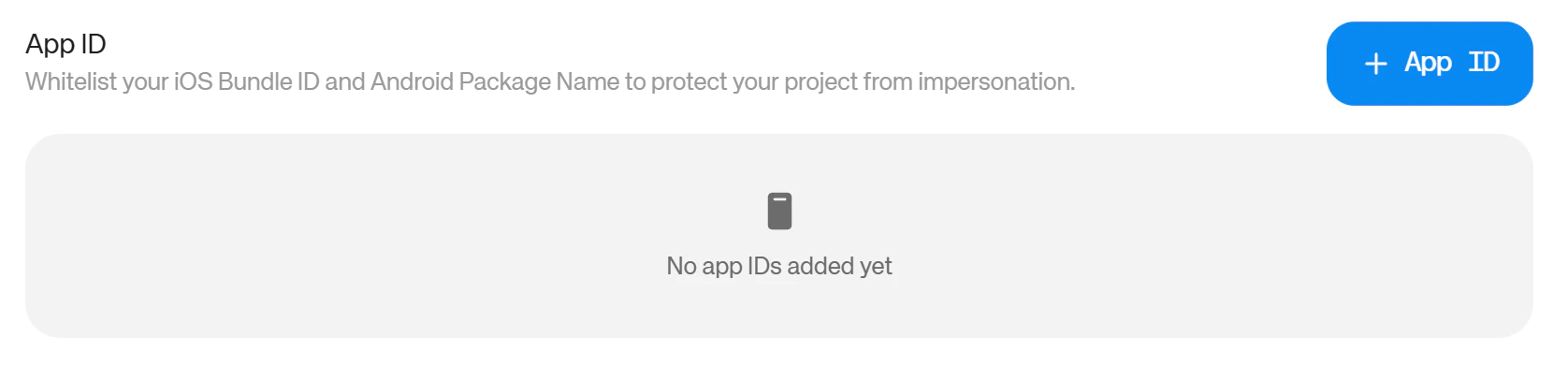
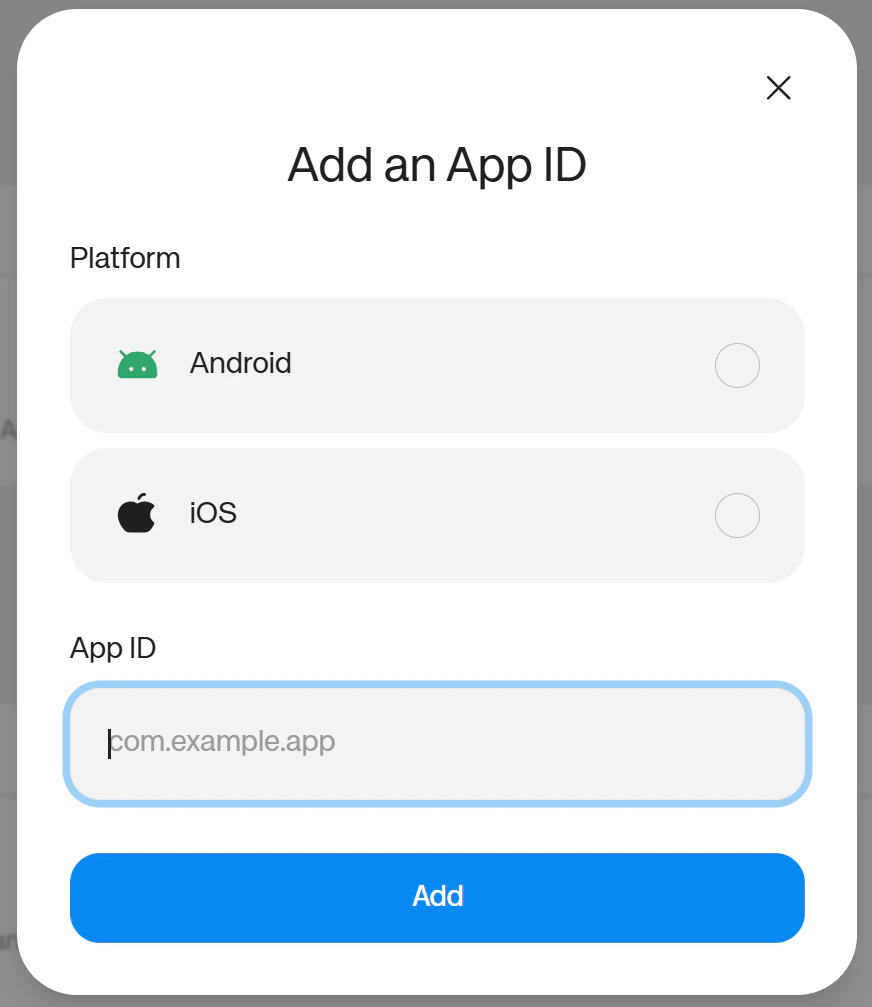
App ID lets you whitelist your iOS Bundle ID and Android Package Name to protect your project from impersonation. To turn it on, scroll to the bottom half of the configuration page to find the "App ID" heading, then click the blue "+ App ID" button, choose your platform (either Android or iOS), type in or copy paste your App ID in the input field and click "Add" to register your changes.
### App ID
App ID lets you whitelist your iOS Bundle ID and Android Package Name to protect your project from impersonation. To turn it on, scroll to the bottom half of the configuration page to find the "App ID" heading, then click the blue "+ App ID" button, choose your platform (either Android or iOS), type in or copy paste your App ID in the input field and click "Add" to register your changes.
 ### Secret
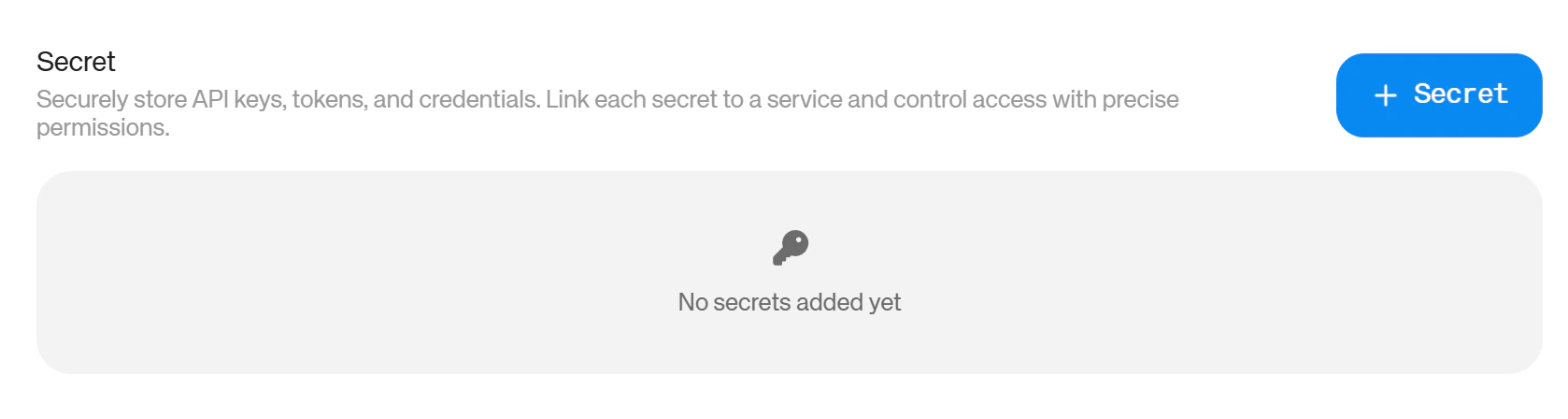
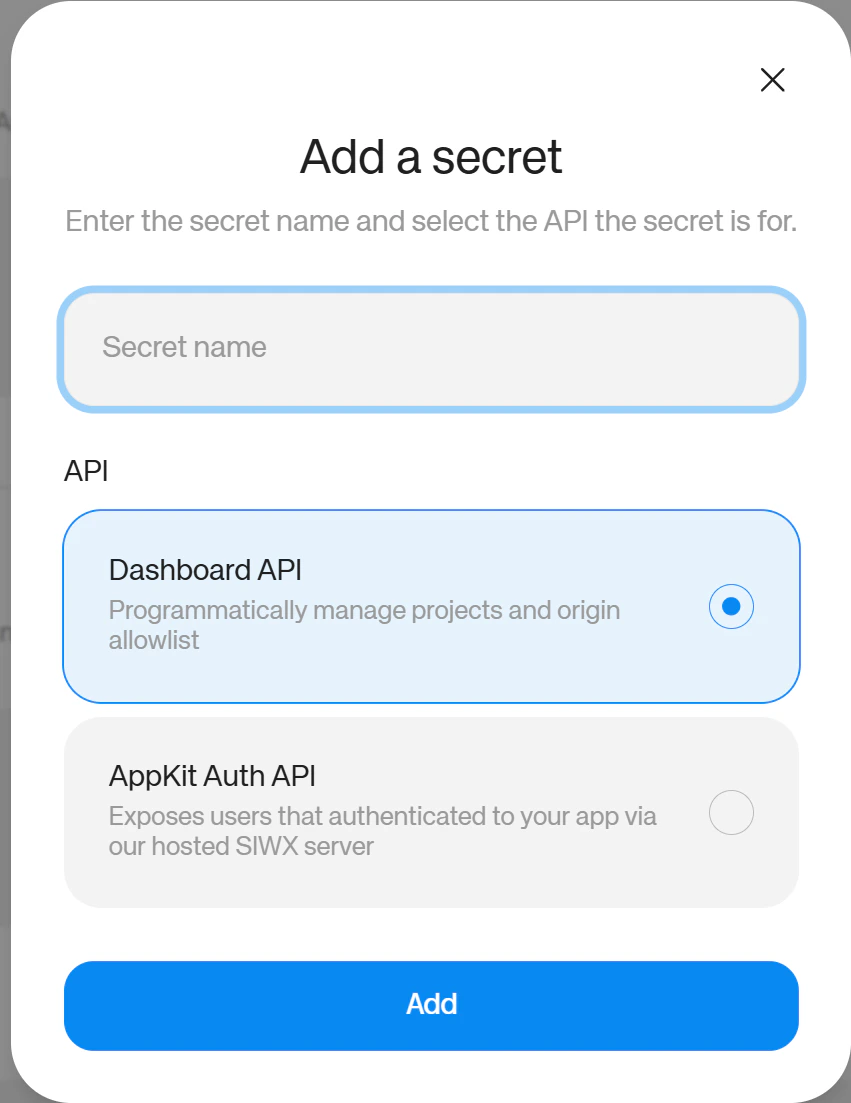
Use the Secret section to securely generate and store API keys. Choose Dashboard API to generate a secret key that can programmatically manage projects and origin allowlists, or choose AppKit Auth API to generate a secret key that exposes your authenticated users that connect to your app via our hosted SIWX server. To turn it on, scroll to the bottom of the configuration page to find the "Secret" heading, then click the blue "+ Secret" button, name your secret, choose which API you want to generate a secret for and click "Add" to register your changes.
### Secret
Use the Secret section to securely generate and store API keys. Choose Dashboard API to generate a secret key that can programmatically manage projects and origin allowlists, or choose AppKit Auth API to generate a secret key that exposes your authenticated users that connect to your app via our hosted SIWX server. To turn it on, scroll to the bottom of the configuration page to find the "Secret" heading, then click the blue "+ Secret" button, name your secret, choose which API you want to generate a secret for and click "Add" to register your changes.